
When I started programming, one of the things that confused me most wasn't necessarily writing code.
It was understanding what the computer was doing with what I typed.
Commands that seemed simple, such as:
pwd
cd
mkdir
touch
felt like nothing more than words I had to memorize.
I knew that pwd displayed a directory, that cd changed directories, that mkdir created a directory, and that touch could create a file. But one question remained:
What actually happens after I press Enter?
And that question leads to an even bigger one:
How does a computer execute a program?
The answer involves much more than simply saying, "the CPU executes the code."
There is a sequence involving the terminal, the shell, the operating system, processes, executable files, the loader, virtual memory, the runtime, the entry point, registers, and the CPU.
In this article, we'll build that explanation step by step.
Before the program: what happens when you use the terminal?

Let's start with something you've probably already done.
On Linux, we can open a terminal and run:
pwdThe command displays the current directory.
Then:
mkdir projectWe create a directory named project.
We can enter it:
cd projectAnd create a file:
touch program.txtAt first glance, it seems as if the terminal simply "understands" these words.
But that's not how it works.
When you type:
mkdir projecta program called the shell is involved in this interaction.
The shell is the program that receives the commands you type and coordinates their execution.
On Linux, common shells include Bash, Zsh, and others.
On Windows, we can use environments such as PowerShell.
This gives us our first important idea:
The terminal is the environment we interact with; the shell is the program that interprets our input and participates in executing commands.
And this is where our journey begins.
What happens when we press Enter?
Imagine that you type:
mkdir projectand press Enter.
A simplified view of the path is:
You
  ↓
Terminal
  ↓
Shell
  ↓
Operating system
  ↓
Requested operation
  ↓
File system
The important detail is that not every command works in exactly the same way.
Some commands can be implemented by the shell itself as built-ins.
For example, cd usually needs to be handled by the shell itself, because changing the shell process's working directory is what allows subsequent commands to run from that directory.
Other commands can be separate programs.
The central point is this:
Typing something in the terminal does not mean the CPU directly received that text as a machine instruction.
There is a software layer between you and the processor.
And this idea will be important when we get to program execution.
A program and a process are not the same thing
This is one of the most important distinctions in this article.
Imagine that you have an executable file.
That file is a stored program.
When the operating system starts running it, we have a process.
A simple way to think about it is:
Program
= something stored

Process
= an instance of that program running
For example, you might have an executable file for a text editor installed on your computer.
The file exists in storage even when the editor is closed.
When you open the editor, the operating system creates a running instance.
This instance has its own resources, such as a virtual address space, execution information, memory, and identifiers.
On Linux, for example, processes have a PID, or process identifier.
Therefore:
executable file
       ↓
    loading
       ↓
     process
       ↓
    execution
This distinction clears up a common confusion among beginners:
The file on disk is not the same thing as the process that is running.
What is an executable file?
An executable file is not simply a text file containing commands.
It has a structure that allows the operating system to discover the information needed to run it.
Different formats can be used depending on the operating system and platform.
On Linux, one of the main formats is ELF — Executable and Linkable Format.
On Windows, we find PE — Portable Executable.
In Apple's ecosystem, there is Mach-O.
These formats contain structural information that helps the system understand how the file should be used.
For PE, for example, Microsoft's documentation describes headers, a section table, import/export information, and data required for the executable image.
In ELF, the program headers describe segments related to creating the process image, including information needed to load the program and prepare its representation in memory.
It's important to recognize the shift in perspective:
It's not just:

"a file with code"

It's:

"a structured file containing information
needed to form a running program"
ELF, PE, and Mach-O
These formats are not simply three different names for exactly the same thing.
They belong to different ecosystems.
| System/ecosystem | Common format |
|---|---|
| Linux/Unix-like | ELF |
| Windows | PE |
| Apple | Mach-O |
ELF is used on many Unix-like systems and describes object files, executables, and shared objects.
PE is the format used for executable images and other related files on Windows. Microsoft documents its structure in terms of headers, sections, data directories, imports, and relocation.
Mach-O is used in Apple's ecosystem. Apple's documentation, for example, covers the executable-code architectures supported by a bundle and how they are loaded.
For our purposes, we don't need to memorize every field in these formats.
We need to understand why they exist.
The operating system needs structured information to turn stored content into a process image that can be executed.
What does the loader do?
Now we come to a fundamental component:
the loader.
The loader helps transform the stored executable into a representation that the process can execute.
Imagine:
Executable in storage
          ↓
        Loader
          ↓
Process image in memory
          ↓
      Execution
In ELF, the specification describes this relationship between the file and the creation of a program's dynamic representation, called the process image. The segments described by the program headers are used to prepare this image in memory.
This is very important.
The computer doesn't simply take the entire file and "throw it into RAM."
It needs to interpret the file's structure and prepare different regions of the process's address space.
In addition, programs often depend on shared libraries and other structures that must also participate in initialization.
How is a program organized in memory?
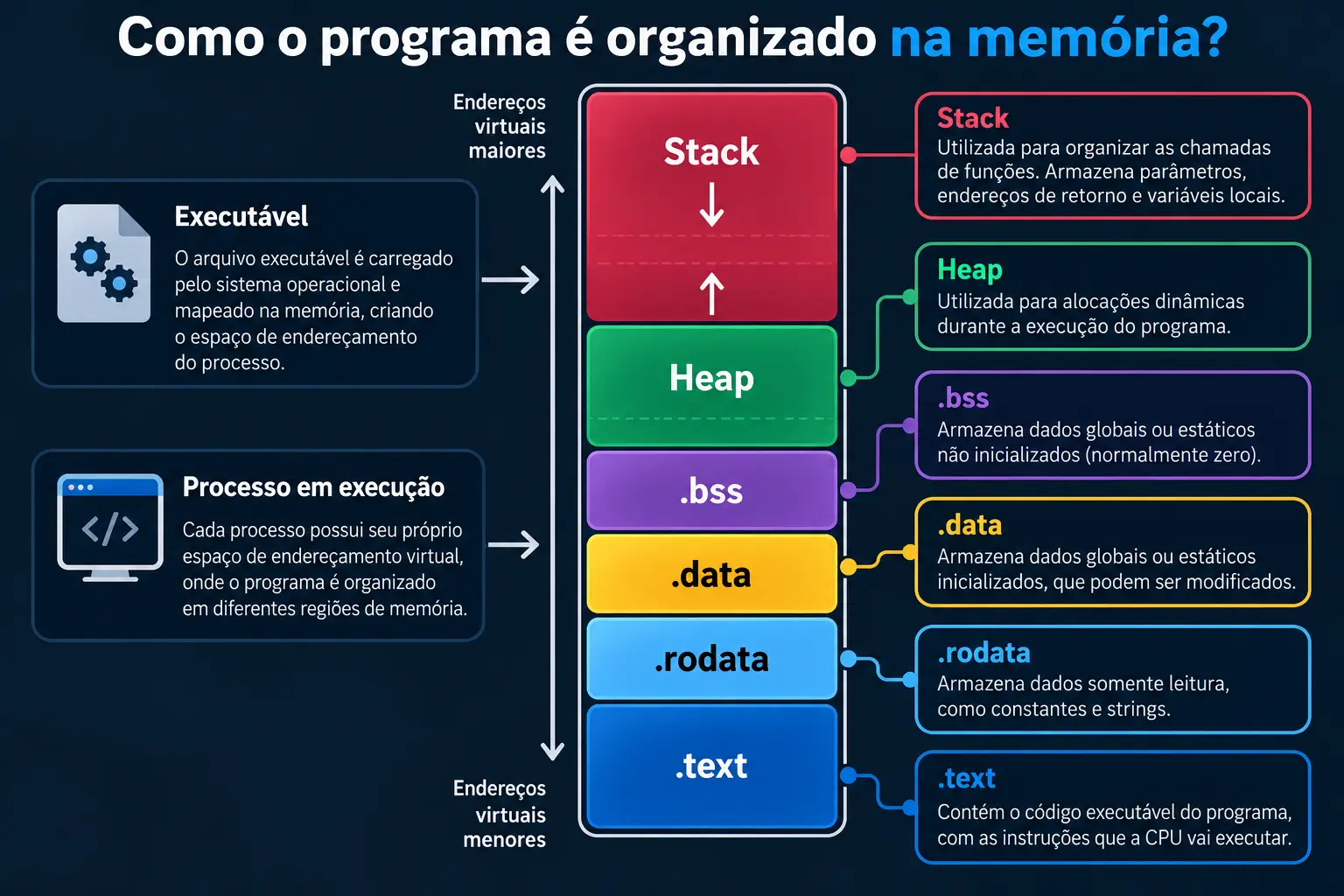
When a process is running, its memory space is not just one large, unorganized box.
There are different regions with different purposes.
A teaching-oriented representation is:
Higher virtual addresses
┌─────────────────────────┐
│          Stack          │
│           ↓             │
│                         │
│                         │
│           ↑             │
│          Heap           │
├─────────────────────────┤
│ Initialized data        │
│ .data                   │
├─────────────────────────┤
│ Read-only data          │
│ .rodata                 │
├─────────────────────────┤
│ Uninitialized data      │
│ .bss                    │
├─────────────────────────┤
│ Code                    │
│ .text                   │
└─────────────────────────┘
Lower virtual addresses
This representation is conceptual. The actual layout depends on the platform, executable format, compiler, linker, operating system, and other factors.
Even so, it helps us understand the different responsibilities.
.text: where the code lives
The .text region is usually associated with a program's executable code.
This is where we find the instructions that may eventually be executed by the CPU.
For example, a function written in a programming language ultimately becomes, directly or indirectly, a representation made up of instructions the processor can execute.
But there is still a huge difference between:
print("Hello")and what the CPU actually executes.
The CPU does not receive the word print as a native instruction.
There is a chain of software between the language we use and the instructions of the processor's architecture.
Our focus in this article is not to explore that transformation in depth, but to understand what happens when executable code already exists and can be loaded and run.
.data, .rodata, and .bss
In addition to code, a program may need to store data.
.data
This is usually associated with initialized global or static data that can be modified.
.rodata
The name comes from read-only data.
It is used for data that many toolchains treat as read-only, such as certain constants and strings.
.bss
This is traditionally associated with global or static data that does not need equivalent space in the file to represent its initial values, which are usually zero.
These regions help illustrate an important point:
A running program is much more than its instructions.
It needs code, data, memory for function calls, dynamic allocation, and various supporting structures.
Virtual memory: the address the program sees
Here we encounter a concept that often causes considerable confusion at first:
virtual memory.
When a program accesses an address, that address belongs to the process's virtual address space.
This does not necessarily mean that the number corresponds directly to a specific physical location in RAM.
The system uses virtual-memory mechanisms to map virtual addresses to physical memory and other resources.
On Linux, you can inspect a process's mapped memory regions through /proc/PID/maps. The kernel documentation describes this file as containing the memory regions currently mapped and their permissions.
For example, output may include regions identified as:
[heap]
[stack]
as well as regions associated with files and libraries.
This makes the concept much more concrete:
The process has an organized address space, and the operating system manages that space's mappings.
Stack and heap
Two terms appear in almost every discussion about memory:
stack and heap.
Stack
The stack is used to organize data related to function execution.
When one function calls another, information must be maintained: parameters, return addresses, and other data needed for execution.
The stack helps organize this information.
Heap
The heap is associated with memory used for dynamic allocation.
When a program needs to obtain memory while it is running, allocation mechanisms may use the heap.
The simplified distinction is:
Stack
→ organizes function-call execution

Heap
→ dynamic memory
Don't think of these as two "physical drawers" inside RAM.
They are conceptual regions of a process's memory space.
Entry point: where does execution begin?
Now we come to an interesting question:
If an executable contains thousands or millions of bytes, where does the computer start?
This is where the entry point comes in.
The executable contains information identifying the initial point of the executable image.
This address allows execution to begin from a known location.
But there is an important subtlety.
The entry point does not have to be the first line of the function you wrote.
Before your main code runs, there may be an initialization stage involving the runtime, libraries, environment setup, and arguments.
Therefore, concepts such as:
Entry Point
Runtime
main()
should not be treated as synonyms.
Depending on the language and platform, an initialization sequence takes place before we reach the code we recognize as "our program."
What is a runtime?
Runtime generally refers to the mechanisms needed while a program is running.
Depending on the language and environment, the runtime may handle different responsibilities.
It may participate in program initialization, structure management, language support, exception handling, threads, memory management, and other operations.
So when we think:
"I wrote a function, and the computer executed it."
there is a considerable amount of infrastructure between those two things.
Your code is part of a much larger execution environment.
Shared libraries
Another important detail appears when a program depends on external code.
Instead of putting absolutely everything inside the executable, systems can use shared libraries.
This allows different programs to use common components.
During loading, these libraries may be mapped into the process's address space.
On Linux, for example, /proc/PID/maps can show memory regions associated with loaded libraries. The kernel documentation illustrates file mappings and regions such as the heap and stack within this address space.
This explains why running a program can involve much more than a single file.
What is relocation?
Now we have another important concept:
relocation.
A program may contain references that need to be adjusted when it is placed at a particular address or when different components need to be connected.
Relocation is one of the mechanisms used to handle this situation.
In the PE format, for example, Microsoft's specification documents base relocations.
In ELF, preparing the program image also involves resolving references between the objects that make up the process.
Beginners do not need to memorize every type of relocation.
The main idea is:
The address represented in the file and the address actually used during execution may need to be adjusted.
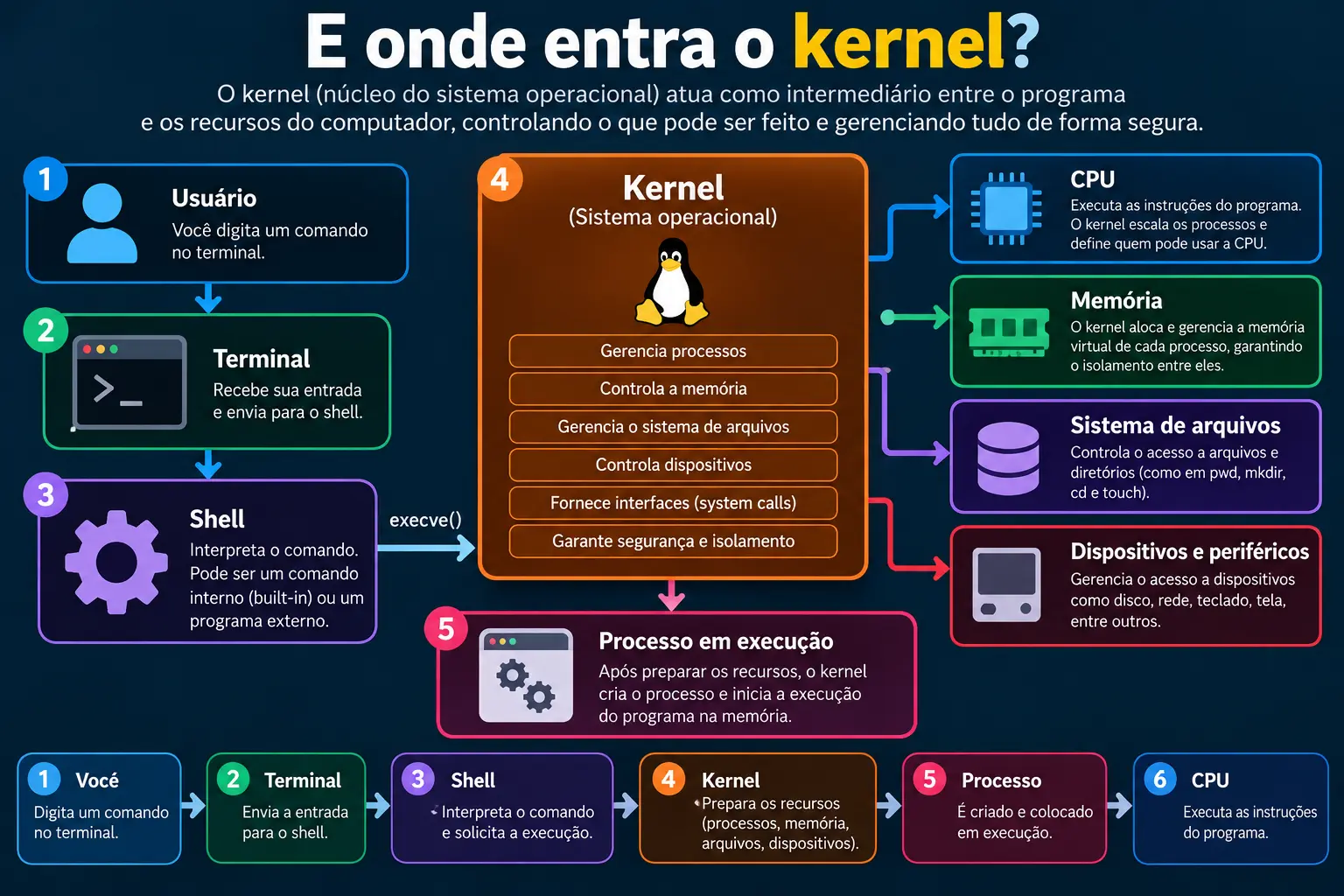
Where does the kernel fit in?
So far, we've talked a lot about the program.
Now we need to look at the operating system.
The kernel is the core of the operating system and has fundamental responsibilities related to managing computer resources.
When a program needs to interact with resources controlled by the operating system, it does not simply access everything directly.
Interfaces exist between the program and the kernel.
On Linux, one of these fundamental interfaces is the system call.
A classic example is execve.
Linux documentation describes execve() as the call that executes the program specified by a path, replacing the calling process's image with a new program image, with its stack, heap, and data segments initialized again.
This is fundamental to understanding execution.
An important detail about the shell
Let's return to our terminal.
You type:
./programThe shell does not take the text ./program and hand it directly to the CPU.
A sequence of operations takes place.
In simplified form:
You type ./program
          ↓
Shell interprets the command
          ↓
Operating system receives a request
          ↓
Program is located
          ↓
Executable is analyzed
          ↓
Process image is prepared
          ↓
Memory is configured
          ↓
Libraries/runtime are prepared
          ↓
Execution begins
On Linux, execve() is one of the fundamental interfaces in this transition.
This is very different from the initial idea:
"I typed a command, and the computer executed it."
In reality, an entire chain was set in motion.
How does the CPU actually execute the program?
Now we reach the final point of our journey.
The CPU.
Once the program is prepared for execution, the processor begins executing instructions for the architecture the code was built for.
At the machine level, these instructions are represented by sequences of bits and bytes.
An instruction may be represented by an opcode and other fields that determine the operation, operands, and addressing modes, depending on the architecture.
The CPU works with registers, which are small storage locations inside the processor used for various purposes during execution.
Among other things, there is a register or architectural mechanism associated with the address of the next instruction to execute.
The simplified idea is:
Memory
  ↓
Instruction
  ↓
CPU
  ↓
Decoding
  ↓
Execution
  ↓
Result
  ↓
Next instruction
In a simplified view, we can imagine the cycle as:
fetch
  ↓
decode
  ↓
execute
  ↓
advance
  ↓
fetch again
The actual implementation of modern CPUs is much more sophisticated, involving pipelining, out-of-order execution, caches, branch prediction, and other mechanisms.
But this simplification is enough to understand the fundamental idea:
The CPU does not execute the entire executable file as a whole. It executes machine instructions from the memory space prepared for the process.
So, what is an opcode?
The opcode identifies the operation represented by a machine instruction.
Imagine a conceptual instruction such as:
addThe CPU does not receive the word "add" as text.
The architecture defines a binary representation for instructions.
Depending on the architecture, bytes may represent operations such as:
mov
add
sub
jmp
call
ret
The names above are human-readable assembly representations.
The CPU works with the binary encoding defined by the architecture.
This is where we can finally connect high-level programming with hardware:
Code you write
        ↓
Software / tools
        ↓
Executable code
        ↓
Machine instructions
        ↓
CPU
What about registers?
Registers are essential to execution.
A CPU has several registers with different functions.
Some can store temporary values.
Others can participate in arithmetic operations.
Still others have specific roles related to execution control.
For example, the architecture may have a register used to track the location of the next instruction.
This helps us understand an important point:
The CPU does not work only with RAM.
It has internal state.
During execution, this state changes continuously.
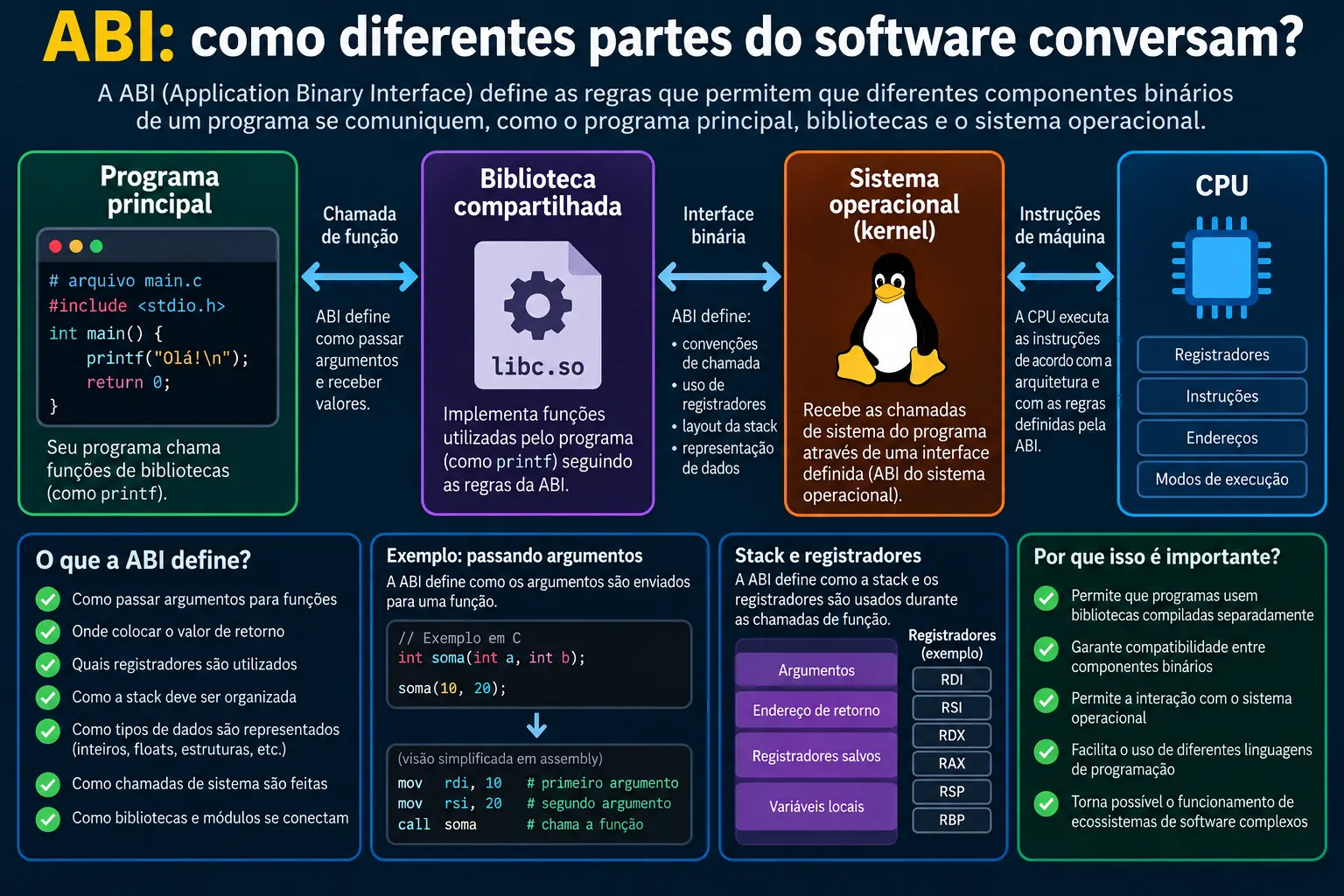
ABI: how do different parts of software communicate?
Another concept that appears when we go down to this level is the ABI — Application Binary Interface.
The ABI defines important rules for how binary components interact.
Among other things, it can establish:
-
how arguments are passed;
-
where return values are placed;
-
which registers have specific responsibilities;
-
how function calls work;
-
how certain types are represented.
This matters because a program does not necessarily operate on its own.
It can call libraries.
Libraries can call other libraries.
Different components need to agree on certain rules.
The ABI helps establish that contract.
Where do Python and Rust fit in?
Now we can return to programming languages.
When you write:
print("Hello")or a small program in Rust, you are working at a layer much closer to the developer than to the CPU.
These languages provide abstractions so that you do not have to manually write every machine instruction.
Rust has a particularly interesting relationship with native executables and low-level systems.
But that does not mean Rust or Python is "what the computer understands."
At the CPU level, the computer works with instructions defined by the processor's architecture.
The language is one of the layers we use to produce or control software that eventually reaches executable instructions.
For this article, we do not need to turn this into a discussion of compilers versus interpreters.
The goal is to see the layers.
And where does LUME fit in?
LUME can be placed within this same view as a concept related to the ecosystem you are studying.
It does not change the fundamental sequence we are trying to understand:
program
  ↓
operating system
  ↓
process
  ↓
memory
  ↓
instructions
  ↓
CPU
For someone just starting out, the most important thing is not to try to memorize all the terms at once.
First, understand the relationship between the layers.
Then you can explore each one in more depth.
The complete path: from the terminal to the CPU
Now we can put everything together.
Imagine that you have an executable program and run:
./programThe conceptual path is:
┌─────────────────────────┐
│           You           │
│   type in the terminal  │
└────────────┬────────────┘
             ↓
┌─────────────────────────┐
│         Terminal        │
└────────────┬────────────┘
             ↓
┌─────────────────────────┐
│          Shell          │
└────────────┬────────────┘
             ↓
┌─────────────────────────┐
│     Operating system    │
│         / kernel        │
└────────────┬────────────┘
             ↓
┌─────────────────────────┐
│       Executable        │
│        ELF / PE         │
└────────────┬────────────┘
             ↓
┌─────────────────────────┐
│         Loader          │
└────────────┬────────────┘
             ↓
┌─────────────────────────┐
│         Process         │
└────────────┬────────────┘
             ↓
┌─────────────────────────┐
│     Virtual memory      │
│ .text .data .bss heap   │
│        stack etc.       │
└────────────┬────────────┘
             ↓
┌─────────────────────────┐
│    Runtime / init.      │
└────────────┬────────────┘
             ↓
┌─────────────────────────┐
│       Entry Point       │
└────────────┬────────────┘
             ↓
┌─────────────────────────┐
│    Machine instructions │
│       / opcodes         │
└────────────┬────────────┘
             ↓
┌─────────────────────────┐
│        Registers        │
│          + CPU          │
└─────────────────────────┘
This is the mental map worth keeping.
Where do pwd, cd, mkdir, and touch fit into this story?
Now we can return to the difficulty that motivated this article.
You started by learning commands such as:
pwd
cd
mkdir
touch
And perhaps it seemed that the goal was simply to memorize:
pwd   → displays directory
cd    → changes directory
mkdir → creates directory
touch → creates file
But now we can look at these commands differently.
They are a gateway to understanding the computer.
When you type a command, software receives your input.
That software interacts with the operating system.
The operating system manages resources.
Processes have memory and state.
Executables have structured formats.
The loader prepares programs for execution.
Virtual memory organizes the address space.
The runtime may prepare the execution environment.
The entry point indicates where execution begins.
And finally, the CPU executes machine instructions.
That is why learning the terminal should not be just about memorizing commands.
The terminal can be a window into understanding how the operating system works.
The main difference between a "program" and a "process"
If you remember only one distinction from this article, remember this one:
Program
→ stored code and data

Process
→ running program + state + resources
A single program can create several processes.
For example, you can open multiple instances of an application.
The executable file remains a file.
Each execution creates an instance with its own execution context.
What you should remember
You do not need to finish this article memorizing every ELF structure, every PE field, or every CPU register.
The first goal is to build a mental map.
When you run a program, think about the following:
1. There is some way to request execution.
In a terminal, this may happen through the shell.
2. There is a file or another mechanism that represents the program.
In traditional systems, executables have structured formats such as ELF or PE.
3. The operating system participates in starting execution.
It needs to prepare resources and memory for the process.
4. The loader prepares the program image.
Parts of the executable and required libraries may be mapped into the address space.
5. The process has virtual memory.
Code, data, heap, stack, and other regions are part of this space.
6. There is a starting point.
The entry point helps define where execution begins.
7. The software initializes its environment.
The runtime and other structures may participate in this stage.
8. The CPU executes instructions.
From there, we enter the level of opcodes, registers, and processor architecture.
The complete path can be summarized as follows:
Terminal
   ↓
Shell
   ↓
Operating system
   ↓
Executable
   ↓
Loader
   ↓
Process
   ↓
Virtual memory
   ↓
Runtime
   ↓
Entry Point
   ↓
Instructions
   ↓
CPU
This sequence is much more useful than memorizing isolated definitions.
Conclusion
The big change in perspective is this:
When you type:
mkdir projector:
./programyou are not simply "sending an instruction to the CPU."
There is an entire architecture between you and the processor.
You interact with a terminal.
The shell participates in interpreting and executing commands.
The operating system manages resources.
The executable has a structure.
The loader prepares the program.
A process is created or transformed to run that image.
Virtual memory organizes the space used by the process.
The runtime and libraries may participate in initialization.
The entry point defines a starting point for execution.
And finally, the CPU works with instructions, registers, and data.
That is why concepts such as executable, process, loader, ELF, PE, .text, .data, .bss, stack, heap, virtual memory, Entry Point, ABI, opcode, and registers are not entirely separate topics.
They are pieces of the same story:
how a stored program becomes something the processor can execute.
And perhaps this is the best way to look at the terminal from now on.
Instead of thinking only:
"
cddoes this,mkdirdoes that..."
you can start asking:
"Which program received this command? What did the operating system do? Which process is involved? Where is this in memory? And what is the CPU actually executing?"
This is when the computer begins to stop looking like a black box.
Keep learning programming
If you are just starting out and still feel that many concepts seem disconnected, the next step is to build a solid foundation in logic and programming.
You can download the free Logic for Beginners eBook and continue your learning journey.
Download the free Logic for Beginners eBook
To strengthen your programming foundation, you can also continue with the articles on Python Programming, Functions in Python, and Conditional Statements in Python.